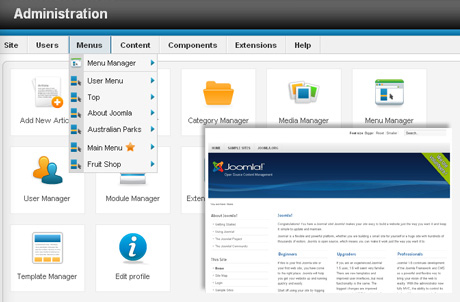
Joomla 3.0.0
On the 27th of September 2012, Joomla version 3.0.0 was released.
Joomla is an open source cutting edge content management system used all over the world to power both simple and complex sites. It has been released under the GNU General Public License. Joomla Content Management System (CMS) can be used for many different purposes including personal websites, business websites, intranets, extranets, ecommerce, reservation systems, government applicatons, community portals and much more.
Over the coming weeks and months we will be documenting Joomla with articles and tutorials. Stay tuned…
Joomla Web Hosting
Get started now! Digital Pacific is an Australian Joomla web hosting and domain names provider offering everything you need to run Joomla. They can install the Joomla CMS for a small fee should you require help with installation.
- Easy Installation with cPanel’s Fantastico
- Joomla Compatibility
- Green Powered Hosting
- 100% Australian Hosting Environment
- Friendly, Expert Australian Support
- FREE Virus and Spam Filtering
- Webmail
- No Contracts
Tutorials
- Joomla Is Multilingual
- Enhance Your Joomla Website With Pre-Made Themes
- The Best Joomla Extensions
- Keeping Joomla Secure
- The Best Joomla SEO Extensions
- Joomla Mass Mail
- Joomla Contact Form
- Joomla RSS Feed
- Changing Read More Text to Button
- Joomla Search Engine Friendly URLs
- How To Back Up Joomla
- Creating A Favicon
- Changing The Joomla Logo
- Joomla Extensions
- How To Install A Joomla Template
- Joomla Templates
- Joomla Password Reset
- How To Install Joomla
Why Build Your Website In Joomla?
More and more of us are looking at building our own websites at the moment. You might, for example, like the idea of setting up your own blog, family site or even a fully functional e-commerce website to promote your products or services. But, often we don’t get past the planning stage. Many of us cannot afford the costs of hiring an experienced web designer, we don’t like the static nature of templated options and we don’t have the technical expertise to do the design and build for ourselves. So, why aren’t you looking at Joomla? This could well be the best option for you.
Joomla is a content management system (CMS) that is a popular choice with both web design professionals and amateurs alike. This system allows the design and build of effective and sophisticated websites in very little time at all with no need for specific technical expertise or qualifications. So, let’s take a look at five reasons why you should consider Joomla as your best solution here:
1. Joomla Is Free
The Joomla solution is an Open Source system. This means that there are no costs associated with using the software to set up your site — with the exception of web hosting. Hiring someone to build even a simple site for you could run into thousands of dollars.
2. Joomla Is Flexible
The fact that this software is Open Source means that anybody can work on the core technology behind the system with a view to making improvements and adding features. This gives Joomla users access to technology that grows all of the time. Open Source software rarely stands still or goes out of date for this very reason.
3. Joomla Promotes Sophisticated Designs
If you’ve ever looked at templated options available to help you build your website then you may have decided not to use them simply because they…look like templates! Often these kinds of web design solutions are clunky to look at. Joomla templates and their features, however, can help you build a sophisticated, individual and professional looking website. This system is, for example, used by parts of The United Nations, Citibank and Harvard University. Equally, it is used by individuals looking to create a site of their own that stands out from the crowd.
4. Joomla Is Easy To Use
The whole point of using a content management system to build a website is that it will manage content. Unlike many other CMS software systems, however, Joomla allows the website owner to manage their own content and to make changes as and when they wish — without having to pay a web designer to do it for them. You don’t need any specific technical experience to use this system.
5. Joomla Is Feature Rich
In its basic form Joomla offers the kind of features and benefits that you simply won’t get from a lot of commercial content management systems. But, in addition, you can also choose from a wide range of ‘extensions’ to the system that you can use as necessary. There are currently thousands to choose from on the Joomla site. So, you could, for example, use an extension to set up a reservations system, translation functions, photo galleries, RSS syndicates, news tickers, affiliate systems and e-commerce functions.
You can, of course, get expert help from a web designer to help you set up your website with Joomla if you prefer. But, do think hard about whether this might actually be more fun to try yourself. Remember, you need no technical expertise and will find the system easy to use and manage. And, once your Joomla site is up and running it will keep you in complete control!